 Skip to content
Setting up the best IPTV for smart TV use is more brand-dependent than almost any other device category. A Firestick or Android box runs the same operating system regardless of which TV it’s plugged into, but a smart TV’s own operating system — Tizen on Samsung, webOS on LG, Android TV or Google TV on many other brands — determines what’s actually possible directly on the television itself, without extra hardware.
This guide walks through how IPTV setup differs across major smart TV brands, when a native app is realistic versus when external hardware makes more sense, and what to check for smooth performance once everything is installed.
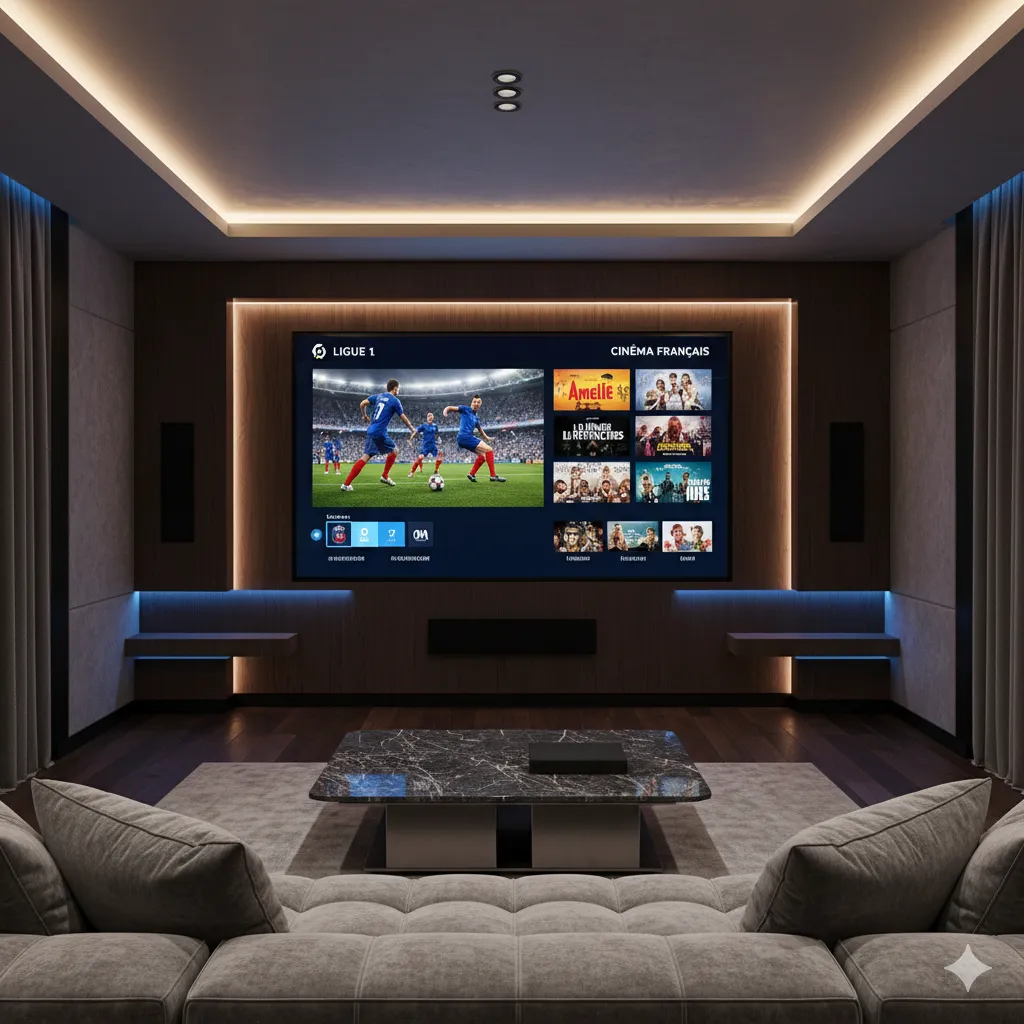
Why Smart TV IPTV Setup Is Different
Smart TVs run manufacturer-specific operating systems rather than a shared, open platform, and each one controls its own app store with its own approval process. That means an IPTV player app that’s freely available on Android devices might not exist at all in a Samsung or LG app store, simply because those platforms have tighter restrictions on what third-party apps get listed. This is the single biggest reason IPTV setup varies so much from one smart TV brand to another, even when the TVs themselves look and function similarly for everything else.
Processing power is the other major variable. Smart TVs, especially budget and mid-range models, are generally built around watching pre-installed streaming apps smoothly rather than running a resource-heavy third-party IPTV player with a large EPG, which is why performance can vary noticeably by both brand and price tier.
It’s worth being realistic about this before shopping for IPTV specifically: a five-year-old budget smart TV and a current flagship model from the same brand can handle the exact same IPTV app very differently, even though both technically support it. If your TV is on the older or lower-end side, pairing it with an external streaming device with dedicated processing power is often a more reliable path than pushing the TV’s own limited hardware to run a demanding player app directly.
Native Apps vs External Devices
Before setting anything up, it’s worth deciding whether you want to run IPTV directly on the TV’s own operating system or through an external streaming device plugged into an HDMI port. Both are valid approaches, and the right one depends heavily on which TV brand you own.
Samsung and LG App Stores
Samsung’s Tizen and LG’s webOS app stores are more tightly curated than Android-based platforms, and dedicated IPTV player apps are less commonly available directly through them. Some general-purpose media player apps that support IPTV playlist formats are sometimes available, but the selection is narrower than on more open platforms. For many Samsung and LG owners, an external device like a Firestick or Android box connected via HDMI ends up being the more reliable path to a full-featured IPTV experience. This isn’t a flaw specific to Samsung or LG so much as a natural result of how tightly each platform controls its app ecosystem; the same restrictions that keep their stores curated and consistent also limit third-party player availability. Some newer Samsung and LG models have started opening up slightly more flexible app installation options in recent software updates, so it’s worth checking your specific TV’s current app store before assuming external hardware is required.
Android TV and Google TV Models
TVs running Android TV or Google TV — common on Sony, TCL, Hisense, and several other brands — behave much more like a Firestick or Android box in terms of app flexibility, since they share the same underlying Android foundation. Sideloading a third-party IPTV player app is generally possible through the same Downloader-style process used on dedicated streaming devices, making these models a more natural fit for a native, no-extra-hardware IPTV setup. Our Android box installation guide covers a sideloading process that applies closely to Android TV-based smart TVs as well.
Browser-Based and Screen Mirroring Options
When a native app isn’t available or practical, two fallback options exist. Some IPTV player services offer a web-based player accessible through the smart TV’s built-in browser, which sidesteps app store restrictions entirely but often comes with a more limited interface than a dedicated app. Screen mirroring or casting from a phone or tablet is the other option, useful as a quick fallback but less ideal for extended viewing since it depends on the mirroring device staying active and connected the whole time. Battery drain on the mirroring phone, plus the risk of an incoming call or notification interrupting the cast, makes this better suited to occasional quick viewing than a nightly routine. Between the two fallbacks, a browser-based player is generally the more stable long-term option if your TV supports it, since it doesn’t rely on a second device staying powered on and connected for the entire session.
Smart TV Brands Compared for IPTV
Here’s a general picture of how major smart TV platforms handle IPTV, though individual models within each brand can vary:
| Platform | Native IPTV App Support | Recommended Approach |
|---|---|---|
| Samsung Tizen | Limited | External device (Firestick, Android box) |
| LG webOS | Limited | External device or browser-based player |
| Android TV / Google TV | Good | Native sideload or external device |
| Roku OS | Limited (channel store dependent) | External device recommended |
If you’re buying a new TV with IPTV as a specific priority, an Android TV or Google TV model gives you the most native flexibility without needing extra hardware, though pairing any smart TV with an inexpensive streaming stick removes this consideration almost entirely regardless of brand.
Ready to switch to a reliable IPTV experience?
Setting Up IPTV on a Smart TV: What to Expect
The exact steps depend on which path applies to your TV, but the general sequence is similar: check your TV’s app store for a compatible IPTV or media player app first, and if nothing suitable is available, connect an external device instead. From there, installation follows the same pattern as any other device — install the player app, enter your provider’s playlist URL or login credentials, and the channel list should populate within moments. Our full smart TV setup guide walks through each brand’s specific steps in more detail, and our general setup guide covers the process across every supported device if you’re configuring more than just your TV.
Performance Considerations on Smart TVs
Even once IPTV is installed, ongoing performance depends on a few factors specific to smart TVs. Older or budget models with limited RAM can struggle with a heavy EPG or a large channel list, showing up as slow menu navigation or delayed channel switching rather than actual video buffering. Restarting the TV periodically clears accumulated background memory, and closing other apps running in the background helps keep the IPTV app responsive. A wired Ethernet connection, where your TV’s placement allows it, generally outperforms Wi-Fi for consistent streaming, particularly for 4K content that needs a stable sustained connection rather than just a high peak speed. It’s also worth checking your TV’s picture settings if streams look noticeably softer or over-processed than expected; some smart TVs apply motion smoothing or upscaling processing by default that can interact oddly with compressed streaming video, and turning these settings off often improves clarity more than any change on the IPTV side would.
Common Smart TV IPTV Issues
A handful of problems show up disproportionately on smart TVs compared to dedicated streaming devices, mostly tied to the more limited hardware and more restrictive app environments involved:
- A black screen with no video, even though the app appears to be running, is a common smart TV-specific issue, often related to a codec or resolution mismatch between the stream and the TV’s display output. Our black screen troubleshooting guide covers the most common causes and fixes.
- Slow app performance that isn’t related to your internet connection at all usually points to limited TV hardware struggling with a heavy player app; switching to a lighter player or moving to an external streaming device resolves this in most cases.
- Apps that disappear after a TV software update happen occasionally, particularly with sideloaded apps on more restrictive platforms; keeping a note of your installation steps makes reinstalling straightforward if this occurs.
How IPeeTV Flix Fits Into This Picture
IPeeTV Flix works with the standard third-party player apps covered in this guide, whether you’re running one natively on an Android TV or Google TV model or through an external device connected to a Samsung, LG, or other smart TV. Our channel library spans 20,000+ live channels with HD and 4K available depending on the specific channel, and connection limits are stated clearly per plan. If you’re not sure which setup path fits your specific TV brand, our about page covers how the service is run, and you can reach out through our contact page with your TV model for setup guidance, or browse current plans on our homepage before deciding between a native install and external device. Whichever path you take, the underlying subscription and channel list stay the same, so switching from a native TV app to an external device later, or the other way around, doesn’t require starting the setup process over from scratch.
Frequently Asked Questions
Can I install IPTV directly on a Samsung or LG smart TV?
It’s possible in some cases through the TV’s own app store, but dedicated IPTV player apps are less commonly available on Samsung’s Tizen and LG’s webOS compared to more open platforms. An external device like a Firestick or Android box is often the more reliable path.
Which smart TV platform works best for IPTV?
Android TV and Google TV models generally offer the most native flexibility for IPTV since they share the same underlying Android foundation as dedicated streaming devices, allowing similar sideloading options.
Do I need an external device for IPTV on a smart TV?
Not always, but it’s common, especially on Samsung and LG TVs with more restricted app stores. Pairing any smart TV with an inexpensive streaming stick sidesteps app availability limitations almost entirely.
Why does my smart TV app run slower than on my phone?
Smart TVs, especially budget and mid-range models, generally have less processing power dedicated to running heavy third-party apps compared to phones, which can show up as slower menu navigation or delayed channel switching.
Why is my IPTV app showing a black screen on my smart TV?
A black screen with audio or no video output is often caused by a codec or resolution mismatch between the stream and your TV’s display settings, rather than a problem with your subscription itself.
Can I use a web browser to watch IPTV on my smart TV?
Some IPTV services offer a browser-based player that works through your smart TV’s built-in browser, which can be a useful fallback when a native app isn’t available, though the interface is often more limited than a dedicated app.
Still comparing options? See our full plans and pricing.
