 Skip to content
Your router does more to determine how smooth your IPTV picture looks than the specific app or device you’re using, and it’s one of the most overlooked pieces of the whole setup. A capable IPTV service running through a weak or overloaded home network will still stutter, no matter how good the server on the other end is.
This guide covers the practical router setup choices that actually move the needle for live streaming: wired versus Wi-Fi, which band to use, and the router habits that quietly prevent a lot of buffering complaints before they start.
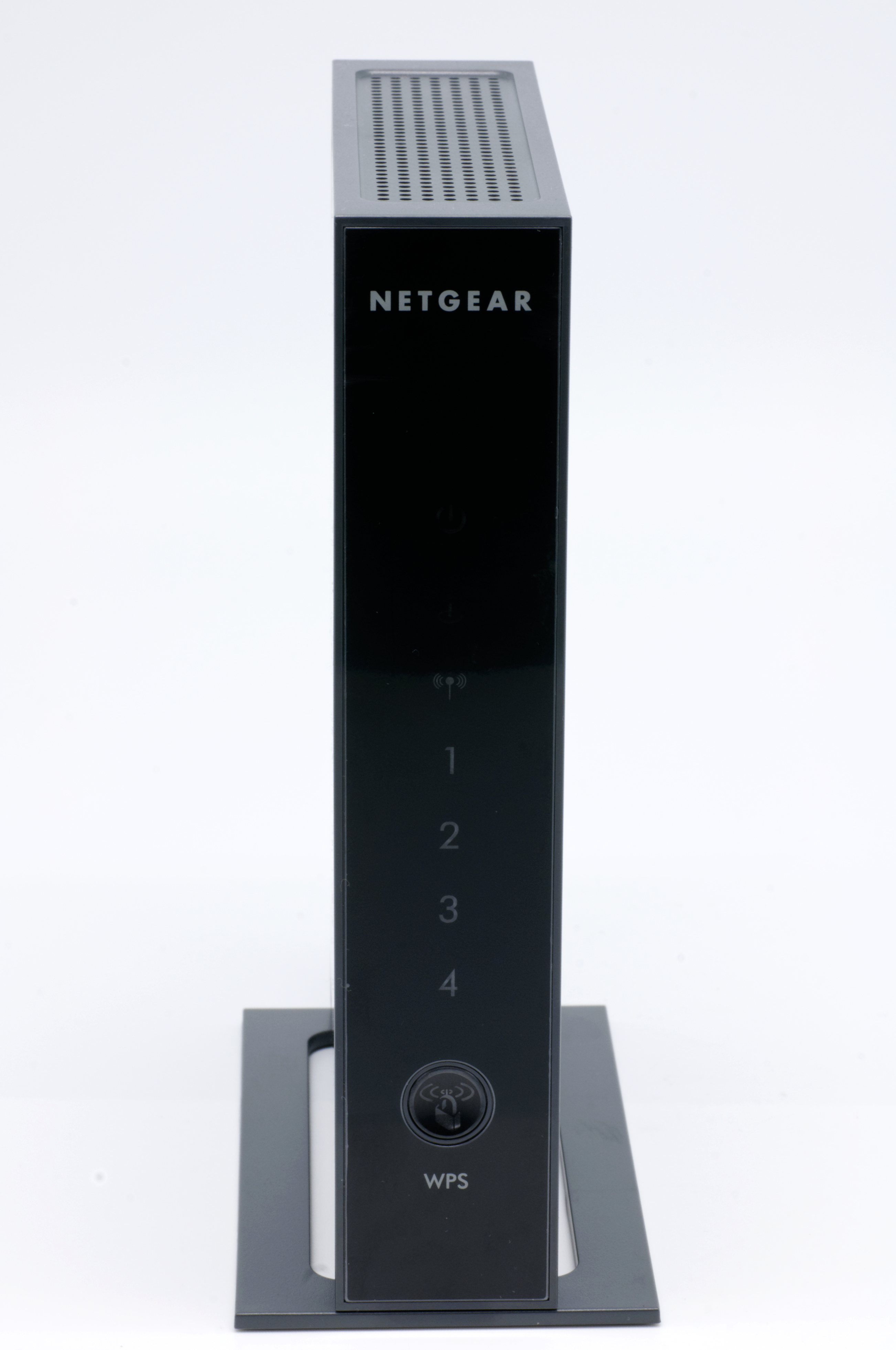
Wired vs Wi-Fi: Why It Matters More for IPTV Than Netflix
Live IPTV is more sensitive to network instability than on-demand streaming services, because there’s no large pre-buffered cushion sitting ahead of what you’re watching the way there often is with a service like Netflix. A brief Wi-Fi dropout that a buffered on-demand show can absorb without you noticing will often show up immediately as a stutter or freeze on a live IPTV channel.
An Ethernet cable connection eliminates the biggest sources of Wi-Fi instability outright: signal interference from other devices, distance from the router, and competing wireless traffic from neighboring networks on a crowded frequency. If your streaming device is anywhere near your router, running a cable is the single highest-impact change you can make for stream reliability.
What to Actually Look For in a Router
You don’t need an exotic “gaming” router marketed with streaming-specific claims to get reliable IPTV; you need a router that’s simply modern enough to handle sustained throughput without choking. Look for dual-band or tri-band support (2.4GHz plus 5GHz, ideally with the newer 6GHz band on Wi-Fi 6E models), and prioritize a router released within the last few years over an older one your ISP may have provided years ago and never replaced.
Quality of Service (QoS): Worth Turning On
Most modern routers include a Quality of Service (QoS) setting that lets you prioritize traffic from a specific device or type of traffic over others sharing the same connection. If your router supports it, prioritizing your streaming device (or video traffic generally) means a phone update downloading in the background or another device’s file upload won’t compete as aggressively for bandwidth during your viewing session.
Picking the Right Wi-Fi Band If You Can’t Go Wired
If Ethernet genuinely isn’t practical, connect your streaming device to the 5GHz band rather than 2.4GHz whenever the device is reasonably close to the router. 5GHz offers significantly more bandwidth and is less prone to interference from household electronics like microwaves and cordless phones, though its range is shorter, so a device in a distant room may still do better on 2.4GHz or with a mesh Wi-Fi extender placed partway between.
Not sure if your current router is holding your stream back?
Simple Router Habits That Prevent Most Issues
- Restart your router every week or two, or set it on a scheduled reboot if the router supports one; connection tables and memory usage build up over long uptimes.
- Keep your router’s firmware updated, since manufacturers regularly patch stability and performance bugs.
- Place the router in an open, central location rather than tucked in a closet or behind other electronics.
- Enable QoS and prioritize your streaming device if your router supports it.
- Use a wired Ethernet connection for your streaming device whenever the setup allows it.
Mesh Wi-Fi Systems for Larger Homes
If your streaming device is in a room far from your main router, or on a different floor with walls in between, a single router’s Wi-Fi signal often simply can’t deliver a consistent signal there no matter how good the router itself is. A mesh Wi-Fi system, which spreads coverage across multiple small access points rather than relying on one central router, is a more effective fix for this specific problem than upgrading to an even more powerful single router, since it addresses the actual distance and obstruction issue rather than just pushing more signal from one point.
If a mesh system isn’t in the budget, a wired Ethernet extension using powerline adapters (which send network data over your home’s existing electrical wiring) is a solid, often cheaper alternative for getting a genuinely wired connection to a distant room without running a physical cable through walls.
Should You Use Your ISP’s Provided Router?
ISP-provided routers vary widely in quality; some are perfectly capable modern hardware, while others are budget units that haven’t been updated in years and lack useful features like QoS entirely. If you’re experiencing regular instability and haven’t changed your router since your internet was first installed, checking whether your ISP’s unit supports 5GHz and QoS, and considering a separate router if it doesn’t, is a reasonable troubleshooting step before assuming the problem is your IPTV provider.
How IPeeTV Flix Fits Into This Picture
A well-set-up router is one of the biggest factors in how consistently smooth an IPeeTV Flix stream looks, alongside our own server-side infrastructure. If you’ve worked through the tips above and are still seeing regular buffering, message us through the contact page with your connection speed and we’ll help rule out anything on our end. See our full internet speed guide for connection benchmarks, or the homepage for current plans.
Frequently Asked Questions
Do I really need a new router for IPTV to work well?
Not necessarily. A router from the last few years that supports 5GHz and QoS is usually enough; the bigger factor is often whether your device is on Wi-Fi or a wired Ethernet connection.
Is 5GHz always better than 2.4GHz for IPTV?
It’s better for bandwidth and interference when you’re reasonably close to the router, but 2.4GHz has longer range, so a distant room may actually perform better on 2.4GHz or through a mesh extender.
What does QoS do exactly for streaming?
It lets the router prioritize traffic from a specific device or type of traffic, so other activity on your network competes less aggressively for bandwidth during your viewing session.
Why does a wired connection matter more for IPTV than for Netflix?
Live IPTV has less pre-buffered cushion than on-demand streaming, so a brief Wi-Fi dropout that Netflix can absorb silently often shows up immediately as a stutter on a live channel.
How often should I restart my router?
Every week or two is a reasonable habit, since long uptimes can build up connection-table issues and memory usage that show up as intermittent instability.
Ready for a stream that matches a properly set-up network?
