 Skip to content
Learning how to setup IPTV on smart TV hardware is a little different from setting it up on a streaming stick, mainly because “smart TV” isn’t one platform — it’s several. Samsung runs Tizen, LG runs webOS, and a growing number of budget sets run Android TV or Google TV under a different skin. Each has its own app store, its own quirks, and in some cases no dedicated IPTV app store listing at all, which means the setup path varies more than people expect, and knowing your platform in advance saves a fair amount of trial and error once you actually sit down to configure it.
This guide covers the three most common smart TV platforms, the app-store method versus the browser/sideload method for each, how to load your playlist once an app is installed, and what to do when your specific TV brand doesn’t have a native option. We’ll also cover how IPeeTV Flix works across smart TV platforms without locking you into one brand.
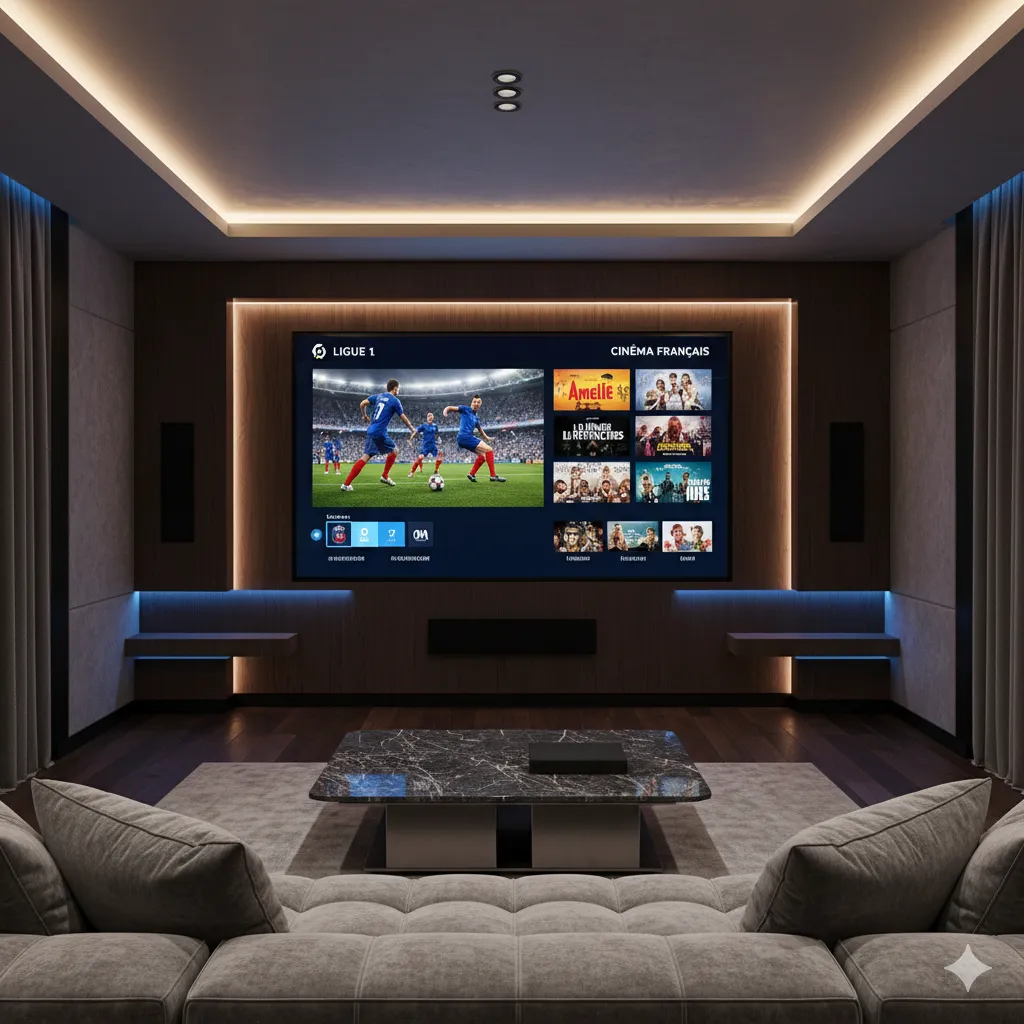
Check Your TV Platform First
Before choosing an install method, confirm exactly which operating system your TV runs, since the steps genuinely differ. Go to Settings > Support > About This TV (Samsung), Settings > General > About This TV (LG), or Settings > Device Preferences > About (Android TV/Google TV) to confirm the platform and software version. Older TVs — generally anything from before 2018 — may run outdated firmware that no longer receives app store updates, which is the single biggest cause of “the app won’t install” complaints on smart TVs. If your TV hasn’t checked for a system update in a while, running one manually before installing anything else resolves a surprising number of app store errors on both Tizen and webOS.
Setting Up IPTV on Samsung (Tizen)
Samsung’s Tizen platform has the most limited native app store selection for IPTV specifically, so most users rely on one of two paths.
App Store Method
- Press the Home button and open the Apps section.
- Search the Samsung app store for a supported IPTV or universal player app.
- Install the app, open it, and choose the option to add a playlist by URL or Xtream Codes login.
Samsung Browser Workaround
If no suitable app appears in your region’s Samsung store, the alternative is a browser-based web player. Open the pre-installed Samsung Internet browser, navigate to a compatible web-based IPTV player URL, and bookmark the page for quick access later. Playback quality through a browser is generally solid for HD content, though it lacks some of the extras — like a full EPG grid or recording — that a dedicated app provides.
Setting Up IPTV on LG (webOS)
LG’s webOS platform (called the LG Content Store) has a similarly narrow native app selection for IPTV, so the process closely mirrors Samsung’s.
- Open the LG Content Store from the home screen.
- Search for an available IPTV or media player app compatible with webOS.
- Install it, launch it, and enter your playlist URL or login credentials in the app’s setup screen.
If your specific LG model doesn’t show a compatible app, the same browser-based fallback used on Samsung generally works on webOS’s built-in browser too, since both are Chromium-based under the hood.
Setting Up IPTV on Android TV and Google TV
Android TV and Google TV give you the most flexibility of the three platforms, since they support the full Google Play Store plus sideloading through a file manager app, similar to how an Android streaming box works.
- Play Store method: search the Play Store directly for an IPTV player app and install it normally — no extra settings needed.
- Sideload method: if your preferred player isn’t on the Play Store, enable installation from unknown sources under Settings > Apps > Special app access, then use a file manager or downloader app to install the APK directly. This is a standard, documented Android feature available on any Android TV device, not a special unlock.
Once installed, open the app and load your playlist the same way as on other platforms: paste your M3U URL or enter your Xtream Codes server details. If you’re unsure what those terms mean, our M3U playlist setup guide breaks the format down clearly.
Loading Your Channel List
Regardless of platform, the final step is identical in structure: open your installed player app, find the “Add Playlist,” “Add User,” or “Login” screen, and enter either your M3U URL or your Xtream Codes username, password, and server address exactly as provided in your welcome email. Double-check for accidental spaces, especially on TV remotes where on-screen keyboards make precise typing slower than on a phone or computer.
Give the app a minute to fully sync the channel list and EPG data on first load — a large channel library with a full program guide can take noticeably longer to populate than a bare channel list with no guide data.
Ready to switch to a reliable IPTV experience?
Naming and Organizing Channel Groups
Most IPTV player apps let you rearrange or favorite channels after the initial sync, which is worth doing on a smart TV specifically because remote-based navigation through a long, ungrouped list is slower than scrolling with a mouse or trackpad. Look for a “Favorites” or “Groups” option in the app’s settings and pin the ten or twenty channels your household actually watches regularly to the top. Many apps also let you rename or hide entire category folders (regional news, kids’ content, sports) if your subscription includes bouquets you don’t personally use, which keeps the main menu manageable instead of scrolling through hundreds of entries every time you turn the TV on.
Universal Player Apps That Work Across Platforms
A handful of IPTV player apps are built to run on Tizen, webOS, and Android TV with a nearly identical interface, which is worth knowing if your household has mixed TV brands in different rooms. Using the same player app across every TV means one consistent menu layout to learn, one favorites list structure to maintain, and one troubleshooting process instead of three different ones. When available for your specific TV models, this consistency is usually worth prioritizing over an app that’s marginally better on one platform but has no equivalent on the others.
Smart TV Platform Comparison
| Platform | App Store IPTV Support | Sideloading Available | Best Fallback |
|---|---|---|---|
| Samsung Tizen | Limited | No | Samsung Internet browser |
| LG webOS | Limited | No | Built-in browser |
| Android TV / Google TV | Good | Yes | Play Store or sideload |
If your current smart TV consistently falls short on app support, pairing it with a separate streaming device is often the more reliable long-term fix rather than repeatedly working around firmware limits — see our guide on choosing the best smart TV for IPTV for a comparison of models that handle this well natively.
Troubleshooting Smart TV IPTV Issues
A few issues come up repeatedly across all three platforms, and most have a straightforward fix.
- App missing from your region’s store: some IPTV apps are only listed in certain countries’ app stores. The browser or sideload fallback covered above resolves this in most cases.
- Playback stutters despite fast internet: older smart TV processors sometimes struggle to decode higher bitrate 4K streams smoothly even with sufficient bandwidth — try switching to the HD tier if your provider offers one.
- Black screen with audio only: often a decoder mismatch on older TV models. Restarting the app, or the TV itself, usually clears this.
- App won’t update or reinstall: clear the app’s cache and storage data under your TV’s app management settings before reinstalling.
If a problem persists after trying these steps, our black screen troubleshooting guide covers deeper diagnostic steps, and you can always reach our support team directly for a faster answer specific to your device.
Wired vs. Wireless Connections
Smart TVs are often placed further from the router than a streaming stick would be, and built-in Wi-Fi antennas on TVs are frequently weaker than those on dedicated streaming hardware. If your smart TV supports Ethernet, a wired connection noticeably reduces buffering during peak-hour viewing, particularly for live sports where a dropped frame is more noticeable than on recorded content. According to Wikipedia’s overview of smart TV technology, most modern sets integrate networking and app platforms directly into the television rather than through an external box, which is convenient but also means the TV’s own antenna placement and shielding become the limiting factor for stream stability.
How IPeeTV Flix Fits Into This Picture
IPeeTV Flix is built to work across Samsung, LG, Android TV, and Google TV without requiring you to switch hardware. Our 20,000+ live channels are delivered across HD and 4K tiers depending on the channel, and because our connection limits are transparent per plan, you’ll always know how many smart TVs and other devices can stream at once under your subscription. Setup starts the same way on any platform: visit our homepage to see current plans, check the setup guide for platform-specific notes, or read more about how we operate on our about page. If your TV’s app store doesn’t cooperate, our support team can walk you through the browser or sideload fallback over WhatsApp.
Frequently Asked Questions
How do I set up IPTV on a Samsung smart TV?
Search your Samsung app store for a compatible IPTV or universal player app and install it directly. If no app is available in your region, open the built-in Samsung Internet browser and use a web-based IPTV player instead, then enter your playlist URL or login details.
Does LG webOS support IPTV apps?
LG’s Content Store has limited native IPTV app selection, similar to Samsung. Most LG smart TV users either find a compatible player app in the store or use the built-in browser as a fallback to load a web-based player.
Can I sideload an IPTV app on my smart TV?
Sideloading is only available on Android TV and Google TV models through their standard unknown-sources setting. Samsung Tizen and LG webOS do not support sideloading, so those platforms rely on app store availability or a browser-based player instead.
Why does my smart TV app show a black screen with sound?
This is usually a video decoder mismatch, common on older smart TV models handling certain stream formats. Restarting the app or the TV itself typically resolves it; if not, try switching to a different quality tier.
Is a wired connection better than Wi-Fi for smart TV IPTV?
Yes, when possible. Smart TVs often sit further from the router than a streaming stick and can have weaker built-in Wi-Fi antennas, so an Ethernet connection generally reduces buffering, especially during peak-hour live sports viewing.
Does IPeeTV Flix work on all smart TV brands?
IPeeTV Flix works across Samsung, LG, Android TV, and Google TV using the platform-specific methods in this guide. Support is available over WhatsApp if your particular TV model needs a specific workaround.
Still comparing options? See our full plans and pricing.
