 Skip to content
“IPTV on Chromecast” actually covers two quite different setups, because Google has sold two different devices under that name, and mixing up which one you have leads straight to confusion about why a step “isn’t working.” The older cast-only Chromecast needs a stream sent to it from somewhere else, while Chromecast with Google TV runs full apps on its own, much closer to a Fire TV Stick.
This guide separates the two clearly and covers the actual working method for each, plus a few general tips for keeping playback smooth on either one.
Two Very Different Devices Called “Chromecast”
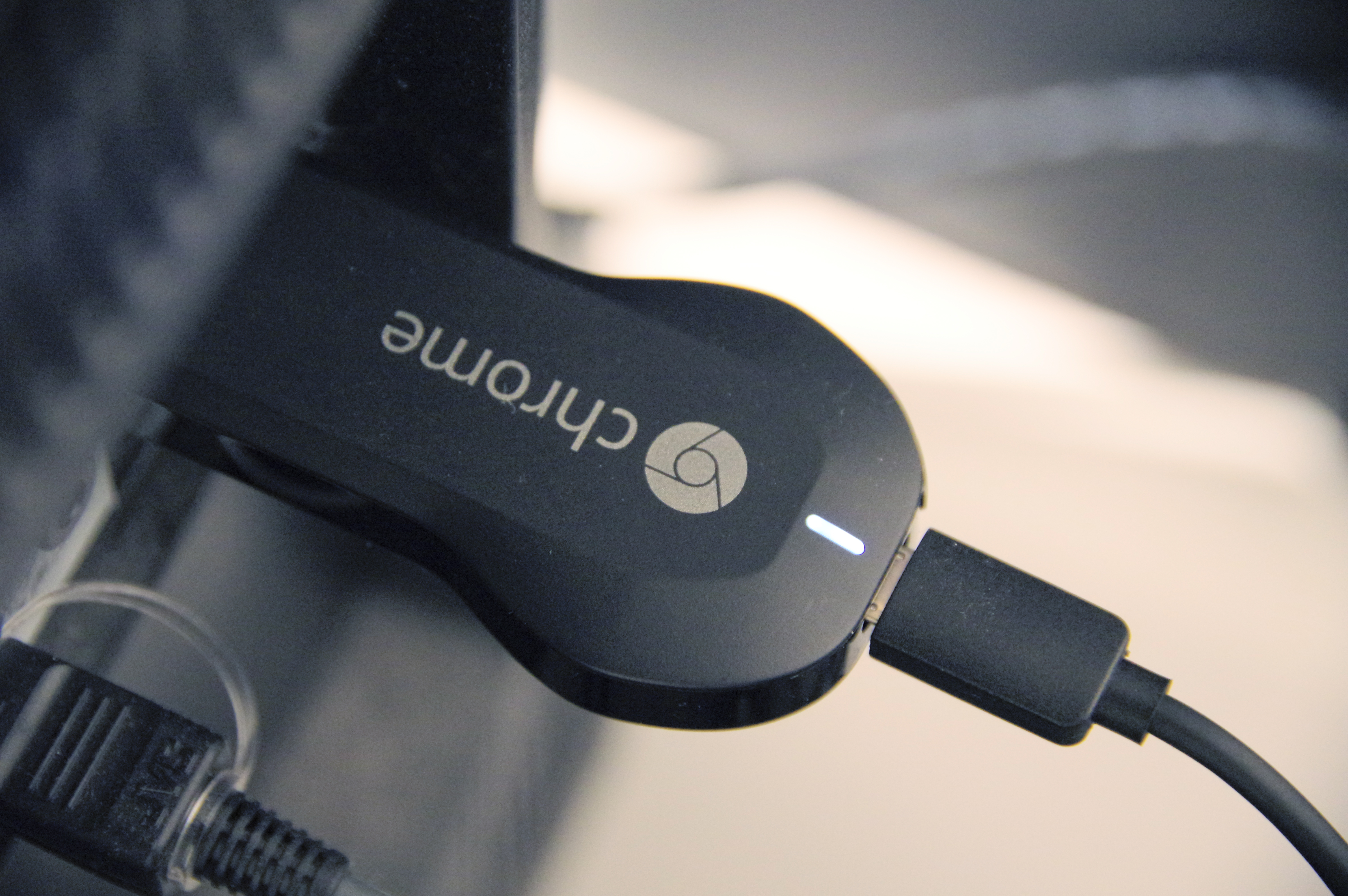
Google has sold two genuinely different products under similar names, and which one you have changes the whole approach. The older, cast-only Chromecast (2nd/3rd generation, and the Chromecast Ultra) has no app store of its own; it only receives a stream “cast” to it from an app or browser on your phone or PC. Chromecast with Google TV, on the other hand, is a full Android TV device with its own remote, home screen, and app store, closer in spirit to a Fire TV Stick than to the older cast-only puck.
If you’re not sure which one you have, check for a remote control in the box: the cast-only Chromecast has none, since it’s controlled entirely from another device. Google TV models come with a proper remote and a visible on-screen interface when you turn on the TV.
Watching IPTV on the Older Cast-Only Chromecast
Since the older Chromecast has no apps of its own, IPTV has to be sent to it from somewhere else. Not every IPTV app supports Google Cast directly — many mobile IPTV apps rely on screen mirroring instead, which works but adds a small amount of extra latency and battery drain since your phone has to keep decoding and re-sending the picture the whole time. On Android, this is usually labeled “Cast screen” from the phone’s quick settings panel; on iPhone, casting to a non-Apple device like a plain Chromecast isn’t natively supported, so Google’s Home app or a third-party mirroring app is needed instead.
A more reliable route on the older Chromecast is casting a browser tab from a laptop, if your provider offers a web-based player panel, since Chrome’s built-in “Cast tab” feature sends video more directly than mirroring a phone screen does.
Watching IPTV on Chromecast with Google TV
Chromecast with Google TV is the far simpler case, since it runs real Android TV apps directly, no casting or mirroring required. Some IPTV player apps are available directly in the Google Play Store built into the device; if your preferred app isn’t listed there, it can usually still be installed by sideloading it with the Downloader app, the same general method used on Firestick.
Sideloading on Google TV
Install Downloader from the Google TV app store, enable “Unknown sources” for it in Settings > Apps > Security & restrictions, then use Downloader to fetch the APK file for your preferred IPTV app from its official source. Our Firestick installation guide covers this same Downloader process in more visual detail, and the steps translate directly to Google TV.
Want help figuring out which Chromecast model you have and the right setup steps?
Getting Smoother Playback on Chromecast
- Keep the Chromecast on a strong Wi-Fi signal; these devices don’t have Ethernet ports on most models, so a weak signal directly limits stream quality.
- Restart the Chromecast occasionally by unplugging it for 10 seconds, since these small devices can accumulate the same kind of memory buildup as any streaming box.
- On the older cast-only model, close other apps on the casting phone to free up processing power for the mirror or cast session.
- On Google TV, avoid running IPTV alongside other heavy background apps, since it’s a genuine Android TV device sharing the same limited RAM across everything running.
Buying New: Which One Should You Get?
Google has largely shifted its focus to Chromecast with Google TV in recent years, and if you’re buying new specifically for IPTV, it’s the more capable option: it runs apps natively rather than depending on another device to cast or mirror to it, meaning your phone or laptop doesn’t need to stay on and connected the whole time you’re watching. The older cast-only model still works and is cheaper where available, but it depends entirely on a second device doing the heavy lifting.
If you already own an older cast-only Chromecast and it’s serving you fine through mirroring or tab-casting, there’s no strong technical need to replace it purely for IPTV; it’s more of a convenience upgrade than a requirement.
Getting Better Quality Out of Screen Mirroring
If you’re stuck mirroring from a phone to an older Chromecast, a few things noticeably improve the result: keep the phone plugged into power during a long session so performance doesn’t get throttled to save battery, close other apps running in the background on the phone, and make sure the phone itself is on a strong Wi-Fi signal, since it’s now relaying the picture rather than just receiving one.
How IPeeTV Flix Fits Into This Picture
IPeeTV Flix works on both types of Chromecast, whether you’re casting from a phone or running a sideloaded app directly on Google TV, since your login isn’t tied to any single device. If you’re not sure which Chromecast model you have or which setup path applies, message us through the contact page and we’ll point you to the right steps. See our full setup guide for other devices, or the homepage for current plans.
Frequently Asked Questions
How do I know if I have a regular Chromecast or Chromecast with Google TV?
Check for a physical remote in the box. The older cast-only Chromecast has none and is controlled entirely from your phone or laptop; Chromecast with Google TV comes with a dedicated remote and its own on-screen home menu.
Can I install an IPTV app directly on a regular Chromecast?
No. The older Chromecast has no app store of its own and can only display content cast or mirrored to it from another device.
Do all IPTV apps support casting to Chromecast?
Not all of them. Many rely on screen mirroring instead of true Google Cast support, which works but adds a bit more latency and drains the casting device’s battery faster.
Is sideloading an app on Chromecast with Google TV safe?
Sideloading an APK from a trusted source using the Downloader app is a standard, widely used method on Android TV devices, including Google TV, and doesn’t require rooting the device.
Why does IPTV on Chromecast sometimes look worse than on a Firestick?
Older cast-only Chromecast models rely on Wi-Fi mirroring rather than running the app natively, which can introduce extra compression and latency compared to a device that decodes the stream itself.
Ready to get IPTV running on your Chromecast?
