 Skip to content
A Windows PC or laptop is one of the easiest devices to get IPTV running on, since it needs no special hardware and works with free software you likely already have. It’s a genuinely useful option too, not just a backup: a laptop connected to a TV over HDMI gives you a full desktop-grade browser and file system alongside your live channels, which dedicated streaming boxes can’t match.
This guide covers the two realistic ways to watch IPTV on Windows — a plain VLC setup and a dedicated app — plus how to actually get the picture from your laptop screen onto your TV.
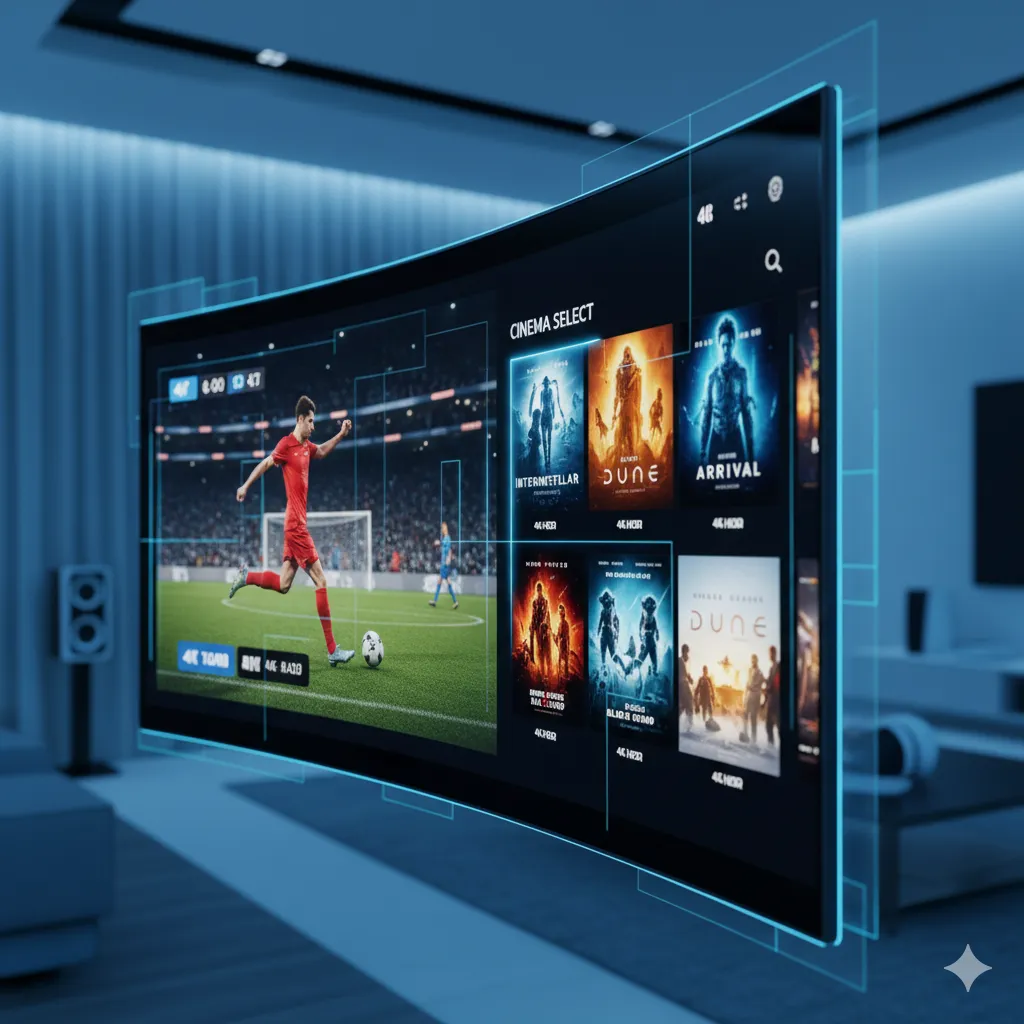
IPTV App Options for Windows PC
The simplest way to watch IPTV on a Windows PC or laptop is with VLC Media Player, since it’s free, plays M3U playlists natively, and needs no account or extra plugin. Open VLC, go to Media > Open Network Stream, and paste your M3U playlist URL directly — VLC will load the full channel list into its built-in playlist panel, letting you browse and switch channels much like a regular media player.
If you want a more TV-guide-style interface with channel logos, categories, and an EPG grid, dedicated apps like IPTV Smarters Pro and OTT Navigator are available through the Microsoft Store and support both M3U and Xtream Codes logins. These apps are heavier than plain VLC but give a noticeably friendlier browsing experience if you’re going to be using the PC as a regular viewing setup rather than an occasional backup.
Connecting Your Playlist or Xtream Login
Whichever app you choose, the setup step is the same in principle: enter either your full M3U URL in one field, or your server address plus username and password if you were issued Xtream Codes credentials instead. Save the profile once it connects successfully so you don’t need to re-enter it each time you open the app.
Saving the M3U File Locally as a Backup
It’s worth saving a local copy of your M3U file to your PC (right-click the link and choose Save As, or use a browser to download it once) as a fallback in case your player app has trouble reaching the URL directly. Local playlist files load instantly and remove one possible point of failure, though you’ll need to re-download a fresh copy periodically since playlist URLs are refreshed by providers from time to time.
Getting the Stream From Your PC Onto Your TV
A wired HDMI cable from your laptop to the TV is the most reliable option, delivering full picture and sound with zero network dependency and no added latency. Most modern laptops output over HDMI or USB-C/DisplayPort with a simple adapter, and Windows will automatically detect the second display, letting you either mirror the laptop screen or extend it so the IPTV app runs full-screen on the TV while you control it from the laptop.
If you’d rather go wireless, Windows’ built-in Cast to Device / Miracast feature can send your screen to a compatible smart TV or a Chromecast-with-Google-TV device without any cable, though wireless casting introduces slightly more latency and depends on both devices being on the same stable Wi-Fi network.
Want your login sent in a format ready to paste into VLC or IPTV Smarters?
Common PC-Specific Issues
| Symptom | Likely Cause | First Fix to Try |
|---|---|---|
| Playlist loads but channels won’t play | Codec issue in the media player | Use VLC, which bundles its own codecs, instead of Windows’ default Movies & TV app |
| Stream plays but stutters on a powerful PC | Wi-Fi rather than a hardware limit | Connect via Ethernet cable instead of Wi-Fi |
| App won’t accept the M3U URL | Extra whitespace or a broken copy-paste | Retype the URL manually rather than pasting |
| Picture plays on laptop but not on the TV | Wrong display output mode selected | Press Windows key + P and choose Duplicate or Extend |
Is a PC Actually Better Than a Dedicated Streaming Box?
A laptop or desktop genuinely does have real advantages for IPTV over a purpose-built streaming stick: more processing power for demanding 4K bitrates, a full file system for saving local playlist backups, and a proper browser for accessing any web-based provider panels. For a permanent living-room setup, though, a dedicated box or stick is usually more convenient day-to-day, since it’s always plugged in and ready rather than something you have to fetch, open, and connect each time.
A reasonable middle ground a lot of people land on is keeping a laptop as the reliable fallback (useful when a dedicated box is being troubleshot, or for testing a new provider before committing hardware to it) while a Firestick or Android box handles daily viewing. See our best IPTV devices guide if you’re deciding between the two as a primary setup.
Windows Firewall and Antivirus Interference
Occasionally, Windows Defender or a third-party antivirus/firewall product will flag streaming traffic or a media player’s network activity and silently block or throttle it, particularly right after a fresh install of VLC or another player app. If a playlist loads but individual channels time out specifically on Windows while working fine on other devices, briefly checking your firewall’s allowed-apps list for the player you’re using is worth doing before assuming the problem is your connection or the provider.
How IPeeTV Flix Fits Into This Picture
Every IPeeTV Flix subscription includes both an M3U URL and Xtream Codes login, so you can drop straight into VLC or a dedicated Windows app without waiting on provider-specific software. If your PC setup runs into a snag that isn’t covered above, reach out through the contact page and we’ll help you work through it. Check our setup guide for other devices, or the homepage for current plans.
Frequently Asked Questions
Do I need a special app to watch IPTV on Windows?
No. VLC Media Player, which is free and widely installed already, can open an M3U playlist directly through Media > Open Network Stream with no extra app needed.
Can I connect my laptop to my TV for IPTV without any extra hardware?
An HDMI cable is all that’s needed for a wired connection on most modern laptops. Wireless casting via Windows’ Cast to Device feature is also built in if you’d rather skip the cable.
Why does VLC play IPTV smoother than other Windows media players?
VLC bundles its own set of codecs, so it doesn’t rely on Windows’ default codec pack, which is a common source of playback failures with other apps.
Is Xtream Codes or M3U easier to use on PC?
Both work fine on PC with the right app. M3U is arguably simpler with plain VLC since it’s just a single URL, while Xtream Codes suits apps like IPTV Smarters Pro that use it to build a fuller guide-style interface.
Should I use Wi-Fi or Ethernet for IPTV on a laptop?
Ethernet is more reliable for sustained HD or 4K streaming since it avoids Wi-Fi interference and signal drop, especially if the laptop is going to be the main TV setup rather than an occasional use case.
Ready to get streaming on your PC tonight?
